Modules · Tasks

Tasks your team will actually use

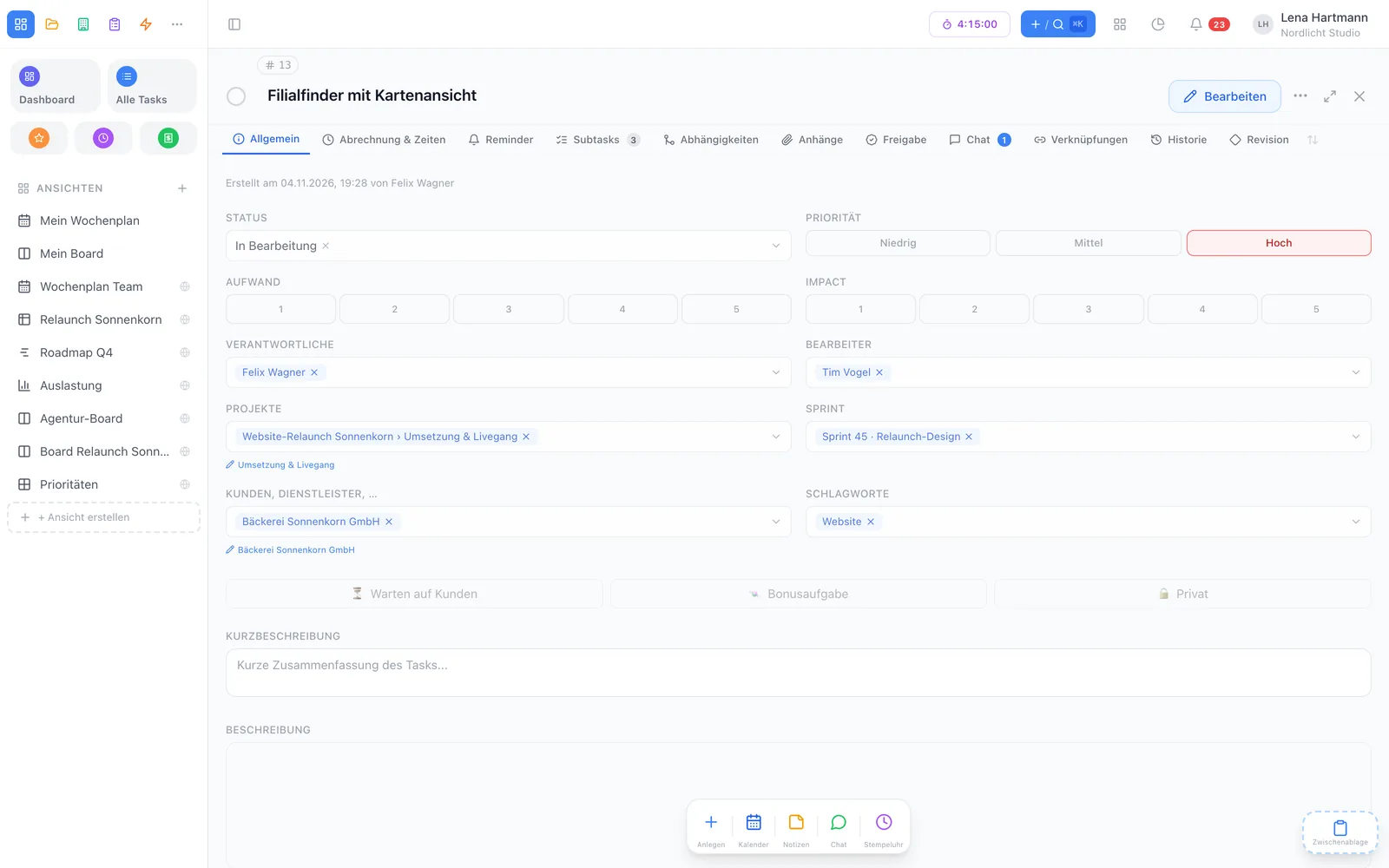
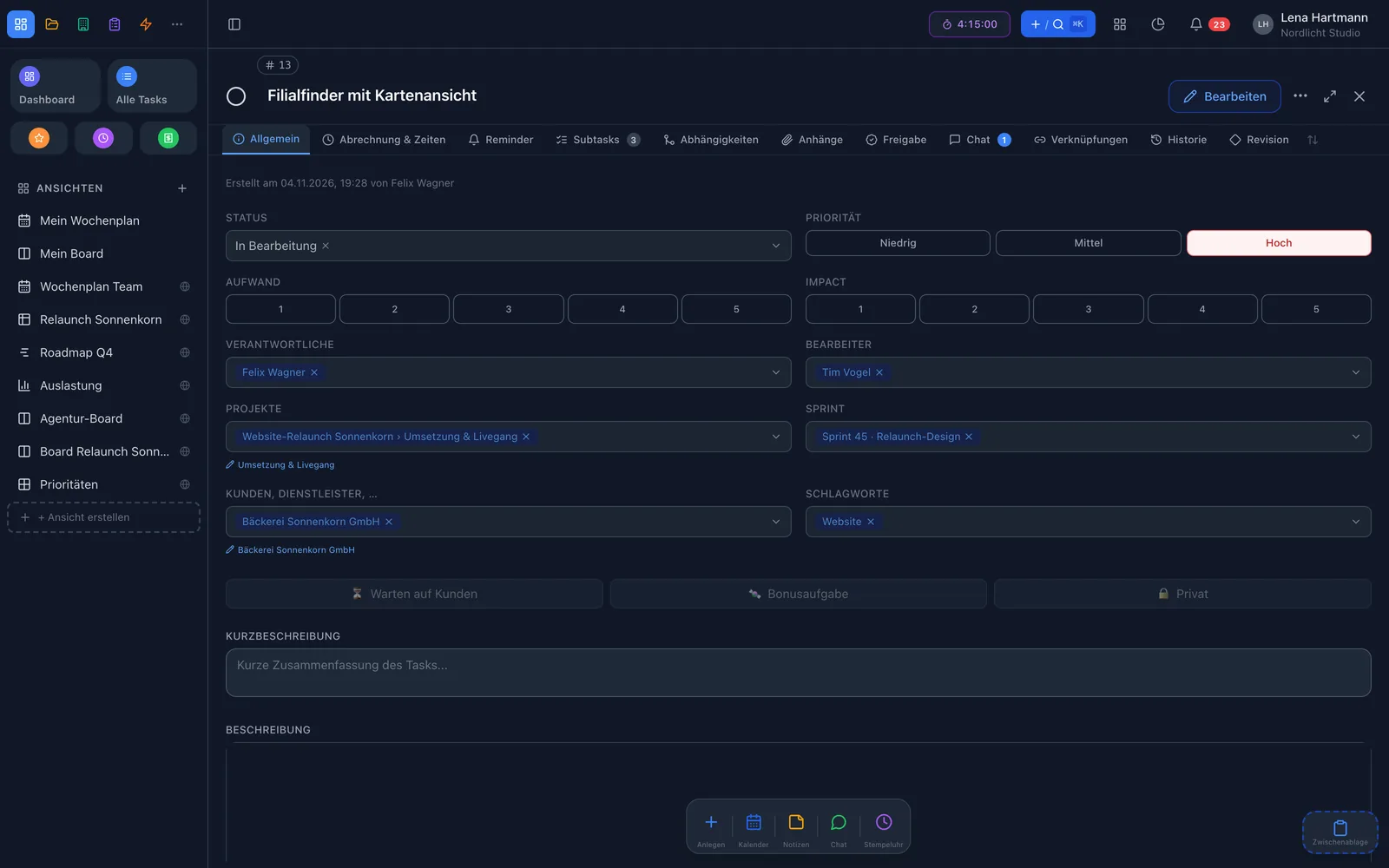
Capture tasks in seconds, share them out across the team and keep the overview — with comments, subtasks, files and time tracking right on the task.

Start free See features

2 members free · No credit card required · Cancel monthly

team.workyoo.com/tasks
Task detail with subtasks, comments and time entries Task detail with subtasks, comments and time entries

At a glance

Everything a good task needs

Captured in seconds

Quick add in every view or from a template — project, person and priority right in the title.

Assignees & owners

Several assignees, clear ownership — you can assign whole groups, too.

Subtasks with progress

Break big tasks down — the mini bar on the card shows how far along you are.

Comments & @mentions

Every task has its own chat. Anyone you mention is notified right away.

Time on the task

Start the stopwatch or add time later — planned and booked side by side.

Private tasks

What only concerns you stays visible to you alone, marked with a lock.

Create

Just start typing

Type the title and add shortcuts: @name for the assignee, #project, !customer, p3 for high priority or a time like 14:00. workYoo turns them into chips and files the task in the right place. For recurring processes there are templates with subtasks, fields and assignments.

  • Quick add in every view
  • The view’s filter values are applied automatically
  • Templates with subtasks, fields and assignment
  • Repeat daily, weekly, monthly or up to yearly

New task

Finalise trade-fair flyer @jen #Marketing !Nordlicht p3 14:00

👤 Jen # Marketing 🏢 Nordlicht 🚩 High 🕑 14:00

Collaboration

Working on one task together — without email chaos

Every task has its own comment thread. Several assignees and one owner work on it at the same time, and changes reach everyone instantly. You can also see who is editing the task right now.

  • @mentions with notification
  • Several assignees, one owner
  • Live updates without reloading
  • Shows who is currently editing the task
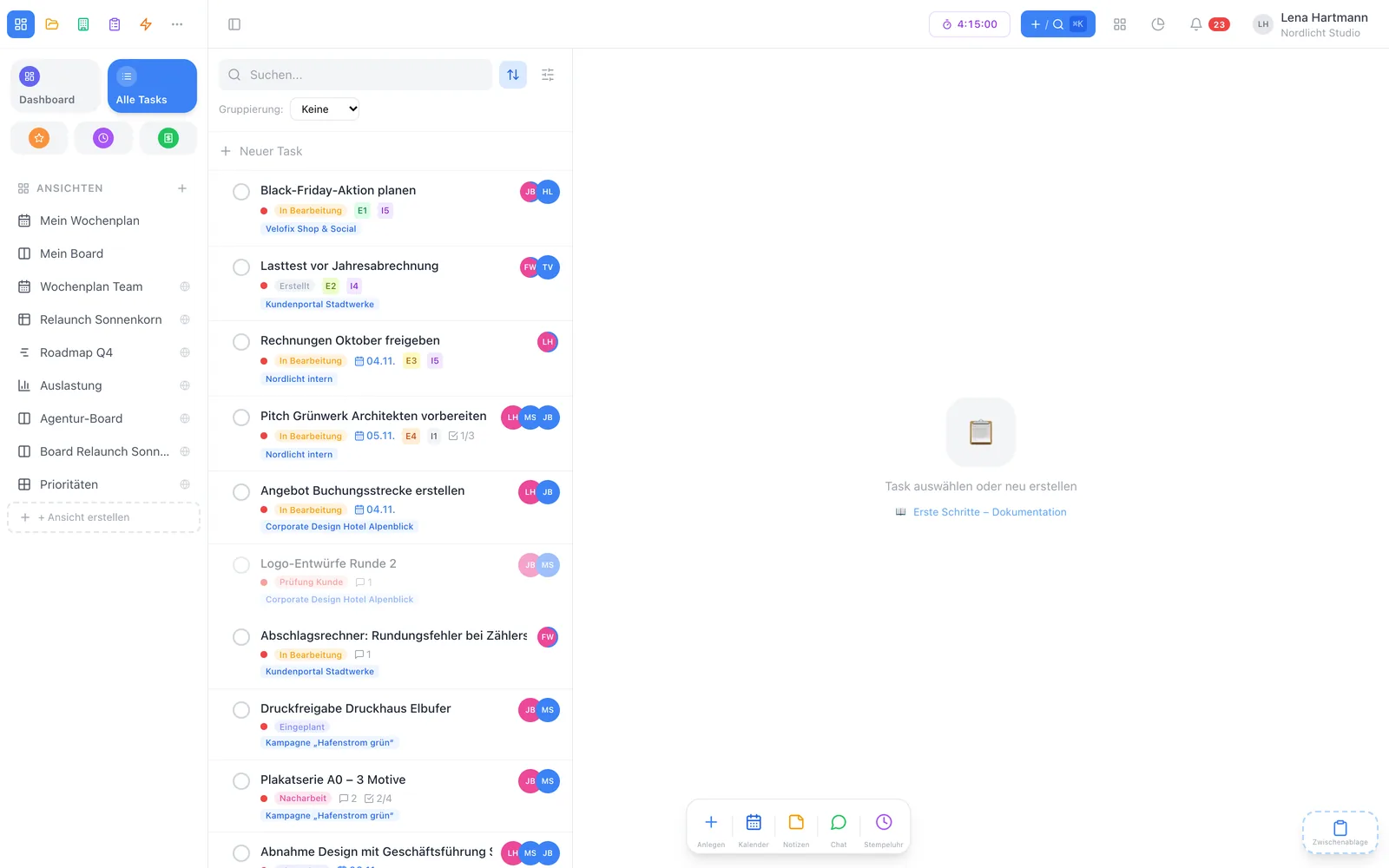
team.workyoo.com/views/list
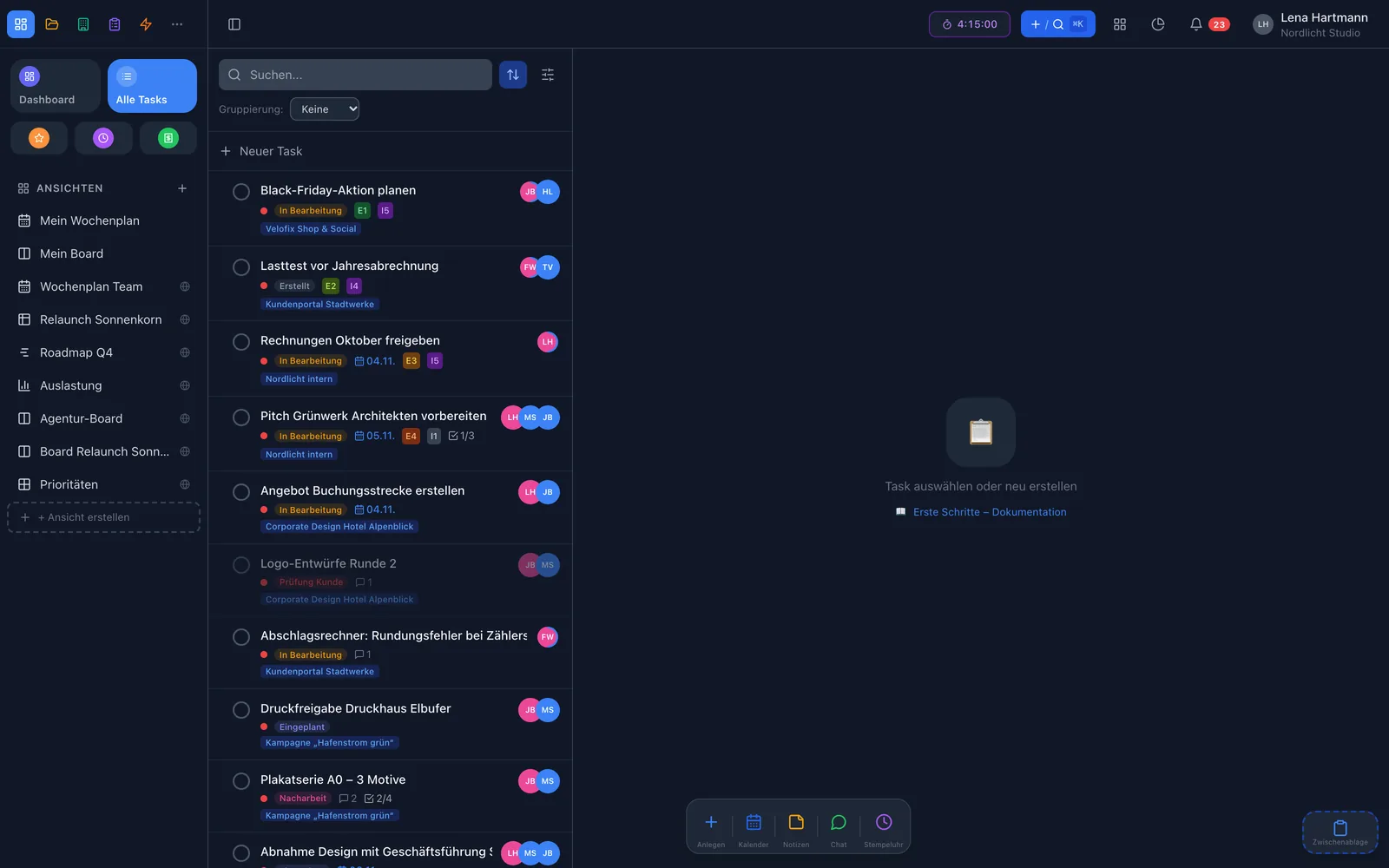
Task list with assignees and progress Task list with assignees and progress

Structure & files

Subtasks, files and custom fields

Split big tasks into subtasks with their own assignees, priorities and dates. Simply drag files onto the card. And with custom fields you extend tasks with exactly the details your team needs.

  • Subtasks with their own fields and assignees
  • Close open subtasks along with the parent task
  • Files via drag & drop — virus-scanned and stored encrypted
  • 9 field types, grouped into sections and filterable in Smart Filter
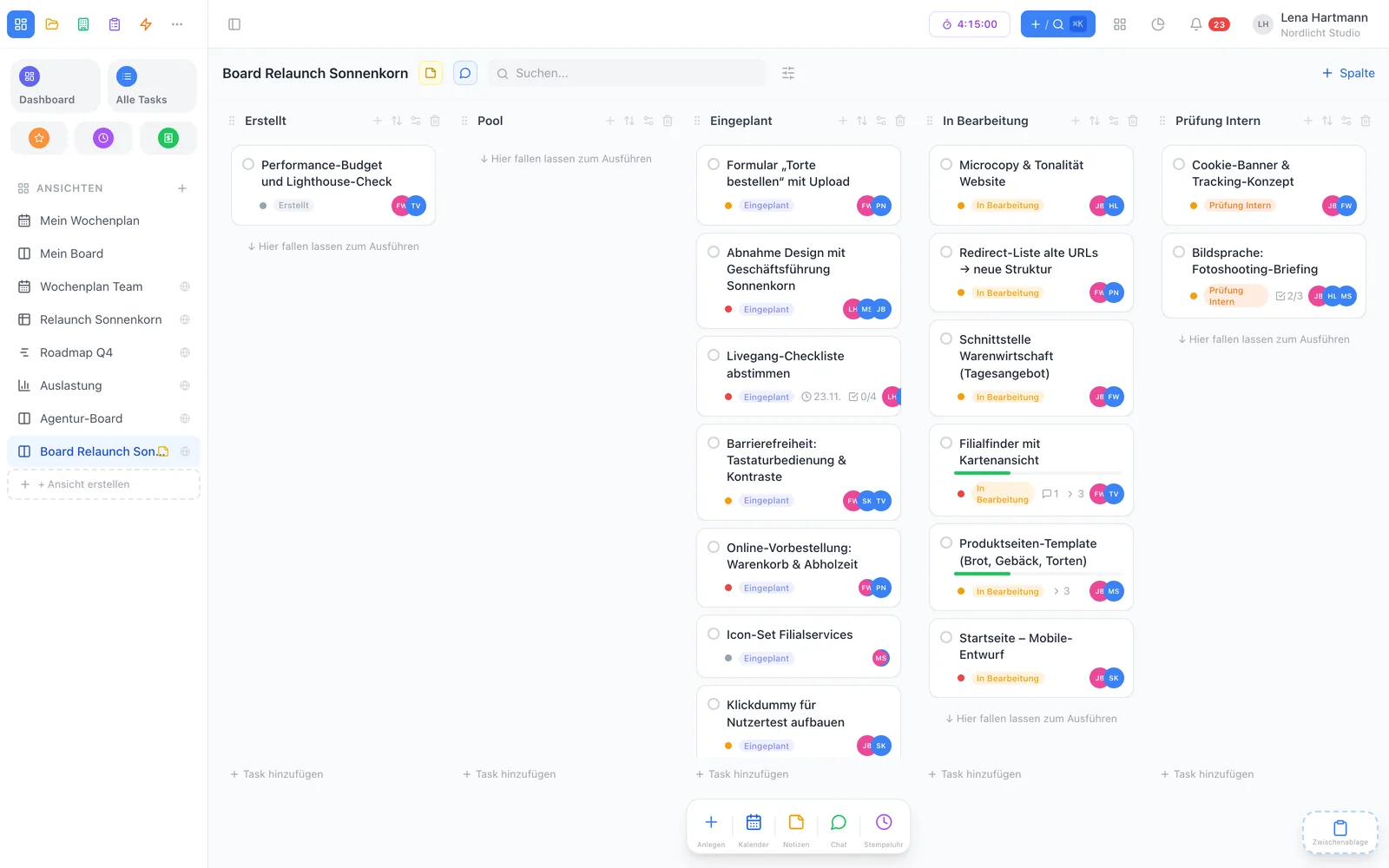
team.workyoo.com/views/board
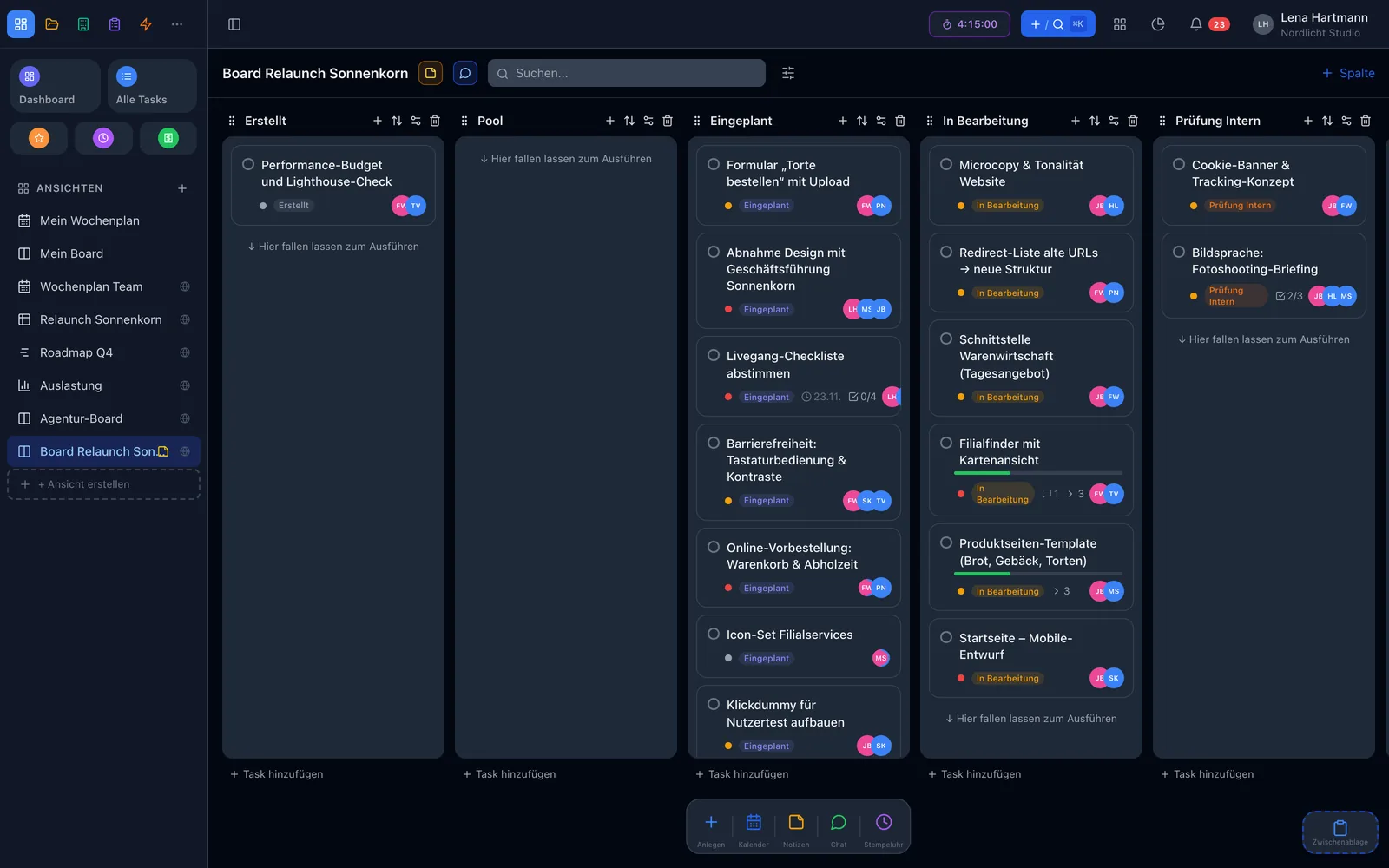
Board with task cards and subtask progress Board with task cards and subtask progress

Even more on the task

Little things that make every day easier

Priorities & dates

High, medium, low — plus deadline, release and your personal “my date”.

Tags

Categorise flexibly and filter with one click.

Customers & projects

Every task knows its context — project, customer, sprint.

Calendar feed

Your task dates via iCal in Apple, Google or Outlook.

Inbox

All open tasks where you are assignee or owner.

Approvals

Attach an image or PDF to the task and comment right on the artwork.

Billing status

Billable, invoice due, invoiced — nothing slips through.

Trash

Deleted by mistake? Restore it from the trash.

Before · after

From sticky note to task with history

Without workYoo

  • To-dos in emails, chats and on scraps of paper
  • “Who is actually doing this?”
  • Five versions of a file in your inbox
  • Hours reconstructed from memory at month’s end

With workYoo

  • Every task in one place, with a date and an owner
  • Assignees and owners at a glance
  • Attachments right on the task
  • Time via stopwatch, neatly per task
Frederik

Frederik · Training & support

My favourite trick in training sessions: set up a view with a filter and create new tasks right inside it. The filter values — project, customer, assignee — are applied automatically, and the task lands exactly where you’ll look for it.

FAQ

Frequently asked questions

What is the difference between assignees and owners?

Assignees do the work — that can be several people or groups. The owner keeps an eye on the big picture and makes sure the task gets done.

Can I create tasks just for myself?

Yes. As the creator you mark a task as private — then nobody but you can see it.

How do I log time on a task?

Start the stopwatch right in the task or add the time manually. Planned and booked hours sit side by side, and you can export the times for invoicing.

Which custom fields are available?

Text, number, date, select, multi-select, checkbox and rich text — plus dividers and subheadings. Mark fields as filterable and they are available in the Smart Filter of every view.

Are attachments safe?

Every upload is checked for file type, scanned for viruses and stored encrypted on servers in Germany. Only members of your team can see it.

Can I see tasks in my calendar?

Yes. With the free calendar feed (iCal), your task dates show up in Apple, Google or Outlook — you switch it on or off per date.
Works great with

Ready for tasks that just work?

Try workYoo for free with your team — no credit card, no risk.

Start free See pricing